Accessible Design of Consumer Products
SECTION 1: OUTPUT / DISPLAYS. Includes all means of presenting
information
to the user
Maximize the number of people who can/will ...
O-1. Maximize the number of people who can... hear auditory
output clearly enough.
Problem:
Information presented auditorially (e.g., synthesized speech,
cuing and warning beeps, buzzers, tones, machine noises) may not
be effectively heard.
Examples:
- Individuals who have mildly to moderately impaired hearing
may not be able to discern sounds that are too low in volume.
- Individuals who have mild hearing impairments may be unable
to turn the volume up sufficiently in some environments (e.g.,
libraries, where others would be disturbed, or in noisy environments,
where even the highest volume is insufficient).
- People with moderate hearing impairments are often unable
to hear sounds in higher frequencies (above 2000 Hz).
- People with hearing aids may have difficulty separating background
noise from from the desired auditory information.
- People with cognitive impairments may be easily distracted
by too much background noise.
- Auditory information which is short or not repeated or repeatable
(e.g., a short beep or voice message) may be missed or not understood.
NOTE: Severely hearing impaired (and deaf) people cannot use audio
output at all. See O-2 for guideline
to address this problem.
Design Options and Ideas to Consider:
- Providing a volume adjustment, preferably using a visual volume
indicator. Sound should be intelligible (undistorted) throughout
the volume range.
- Making audio output (or volume range if adjustable) as loud
as practical.
- Using sounds which have strong mid-low frequency components
(500 - 3000 Hz).
- Providing a headphone jack to enable a person with impaired
hearing to listen at high volume without disturbing others, to
enable such a person to effectively isolate themselves from background
noise, and to facilitate use of neck loops and special amplifiers
(see additional information below).
- Providing a separate volume control for the headphone jack
so that people without hearing impairments can listen as well
(at standard listening levels).
- When a headphone jack is not possible:
- placing the sound source on the front of the device and away
from loud mechanisms would facilitate hearing.
- locating the speaker on the front of the device would also
facilitate use of a small microphone and amplifier to pick up
and present the information (via speaker, neckloop or vibrator).
- Facilitating the direct use of the telecoil in hearing aids
by incorporating a built-in inductive loop in your product (e.g.,
in telephone receiver's earpiece).
- Reducing the amount of unmeaningful sound produced by the
product (i.e., background noise).
- Presenting auditory information continuously or periodically
until the desired message is confirmed or acted upon. Spoken messages
could automatically repeat or have a mechanism for the user to
ask for them to be repeated.
Additional Information:
- An adjustable and fairly loud volume is particularly
helpful to aging individuals and others with mild hearing impairments
who do not normally carry or use hearing aids or other sound
amplification
devices. (Note that many such people do not wish to acknowledge
their hearing loss by wearing aids.)
- Visual indication of the volume setting is important,
as individuals with hearing impairments often do not know or realize
the volume level is set painfully high for others. Simple strategies
include a painted and/or tactile dot or arrow on a control dial,
a sliding bar volume control, numbers or graphics (on a thumbwheel
dial), or an on-screen bar graph volume indicator (see examples
below).
- Loss of hearing associated with age generally begins with
the inability to hear high frequencies. Thus, use of lower
frequencies will be particularly helpful to older people.
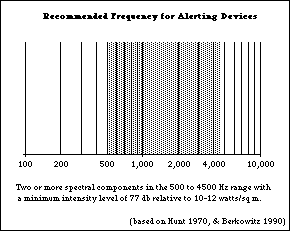
- For alerting devices the use of two or more spectral components
in the 500 - 4500 Hz range is recommended based on ringer studies
. Others suggest limiting the upper frequency to 3000 Hz
to better accommodate people with mid-high frequency loss.
- When using voice output, male voices are usually
preferable to female voices because of their lower pitch. Consonants
which are particularly easy to hear in the male speech patterns
are "m" and "n."
- The use of sufficient volume and low frequency are
particularly critical for alarms.
(See S-1 for guideline to
specifically
address this problem.)
- For some products it may be feasible to have adjustable
frequency of auditory output.
- A (front mounted) headphone jack allows individuals
with hearing impairments to carry a pair of headphones or headphones
equipped with a small, battery-operated amplifier to provide the
necessary sound levels.
- Headphone jacks come in two sizes. The commonly used ones
are 1/4" and 1/8 ". Because both are so commonly used,
most headphones come with an adaptor which allows them to work
with both jack sizes. As a result, either size is generally acceptable.
The larger size jack is slightly easier to handle and more rugged
but the smaller size is becoming the more common size due to
miniaturization
of equipment.
- The headphone jack can be used to connect an inductive
neckloop (loop which is worn around the neck and provides
direct inductive coupling with the t-coil in a hearing aid).
- Headphone jacks are also appreciated by non-hearing-impaired
people and people with certain types of learning disabilities
where use of a headphone is desirable for privacy or in both noisy
and quiet environments (e.g., factory, office, or library). A
separate volume control for the headphones is also useful when
others would like to listen to the same output (via speakers)
at a lower volume.
 D
D
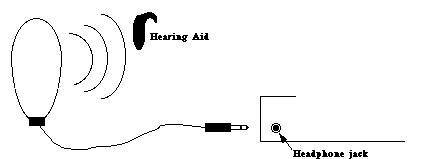
Figure O-1-a: A
neck ring or ear loop can be plugged into a headphone jack on
an audio source and provide direct inductive coupling between
the audio source and a special induction coil on a person's hearing
aid. This cuts out background noise that would be picked up by
the hearing aid's microphone and provides clearer reception of
the audio signal.
 D
D
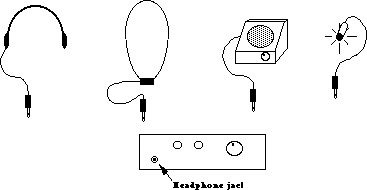
Figure O-1-b: A headphone
jack permits the connection of headphones, neck/ear loops, amplifiers
or sound indication lights.
 D
D
Figure O-1-c: Speaker
near edge and away from unwanted noise sources allows use of microphone
to pick up sounds and relay on to an amplifier and speaker or
neckloop. (Not as good as headphone jack..)
 D
D
On-screen bar graph (need non-visual method as well); Visual (and
tactile) dot; Sliding
Control with Reference (Not as good for people who are blind).
Figure O-1-d: Provision
of a visual indicator of volume level is useful so that people
with hearing impairments can better judge the impact of volume
on others in the environment.
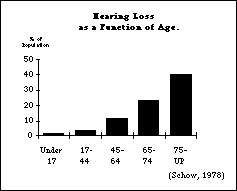
Figure O-1-e
Hearing Loss as a Function of Age
 D
D
Figure O-1-f
Hearing Loss for Different Frequencies as a Function of Age
 D
D
Figure O-1-g
Recommended Frequency for Altering
Devices
 D
D
O-2. Maximize the number of people who will ... not miss important
information if they can't hear.
Problem:
Audio output (e.g., synthesized speech, cuing and warning beeps,
buzzers, tones) may not be heard at all or may be insufficient
for effectively communicating information.
Examples:
- Individuals who are severely hearing-impaired or deaf may
not hear audio output, even at high volume and low frequencies.
- Individuals with language or cognitive impairments may not
be able to respond to information given only in auditory form.
(This may also be true if the language used is not the primary
language of the individual.)
- Individuals who are deaf-blind may not hear audio output.
- Individuals with standard hearing must sometimes
use products in environments where the sound must be turned off
(libraries) or where the environment is too noisy to hear any
sound output reliably.
Design Options and Ideas to Consider:
- Providing all important auditory information in visual form
as well (or having it available). This includes any speech output
as well as auditory cues and warnings.
- Providing a tactile indication of auditory information.
- Facilitating the connection or use of tactile aids.
- Providing an optional remote audio/visual or tactile indicator.
Additional Information:
- It is understood that those products designed solely for the
purpose of providing audio output (e.g., radios, stereos, CD and
casette players) will not generally be useful to severely
hearing-impaired/deaf
people without special external adaptations. Therefore, it is
not intended that this guideline should apply to such products.
- Some methods for accompanying auditory cues and warnings with
a visual indication would be to blink all or part of the display
screen or any existing light(s) on the product. (Avoid high frequency
flicker - over 2-3 Hz; see O-7.)
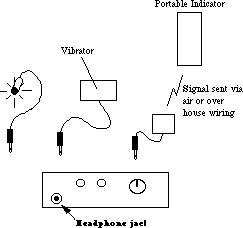
- If it is not possible to provide a redundant visual cue for
the auditory information, a headphone jack would allow the user
to plug in a small LED or light that would provide a visual flicker
whenever sound was emitted from the product's speaker. (For deaf-blind
users a small vibrator could be used.) This would be sufficient
only to indicate that a sound had occurred, not the character
(and therefore possibly the meaning) of the sound if frequency
or timbre were used to convey information.
- When a headphone jack is not provided, the placement of the
sound source near a quiet location and with the speakers facing
the user facilitates the use of a small microphone and amplifier
with a small LED or tactile stimulator (as well as a speaker or
neckloop - see O1).
- Use of a remote audio/visual or tactile indicator (e.g., to
indicate that the washer or dryer in the basement is done) is
useful to all. For example, a small unit might come with an appliance
(like a stove or dryer) which could be carried around with a person
(who will not be in earshot of the appliance) and beep, buzz,
or vibrate when the appliance is "done." Alternately,
the remote indicator could be a small device which plugs into
the wall and is triggered by signals sent over the house wiring
by the appliance (e.g. dryer) to indicate that it is done.
- Any voice output from computers, TV's and other products which
is not also available as printed text on the screen or product
should be available (optionally) through captions on the display
screen. External captioning devices can be connected after the
fact to some devices, but they are expensive and require that
the user carry the devices with them to connect to the products
as they encounter them. They are also practical - or even
possible with public-use products. Built in captioning facilities
are usually very inexpensive and effective. NOTE: After July 26,
1993 all televisions will be required to include built-in caption
decoding circuitry.
 D
D
Figure O-2-a: LED next to speaker gives redundant visual
indication of all
auditory information.
 D
D
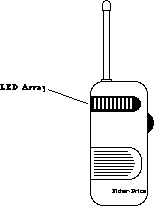
Figure O-2-b: A baby monitor from Fisher-Price provides a visual
indication of
the loudness of the sounds from the baby's room. [ It is advertised as
being useful
"even if you're surrounded by other noises, the TV, the phone, the
vacuum, the
dishwasher..." ]
 D
D
Figure O-2-c: A headphone
jack permits the connection of visual and tactile indicators.
It would also allow the connection of remote alerting devices
which could be carried or positioned in other places in the house.
 D
D
Figure O-2-d: A visual
indication of computer hard disk activity provides the same information
to a person who is deaf that the disk noise provides to those
who can hear. This feature is also useful to hearing users when
the disk drive is silent or there is background noise.
O-3. Maximize the number of people who will ... have line
of sight to visual output and can reach printed output.
Problem:
Visual displays or printouts may be unreadable due to their placement.
Examples:
- Individuals who are in a wheelchair or who are extremely short
may be unable to read displayed information due to the physical
placement or angle of the display screen.
- Individuals in wheelchairs, with missing or paralyzed arms,
or with ability to move limited by cerebral palsy or disease (e.g.,
severe arthritis, MS, ALS, muscular dystrophy) may be unable to
reach printed output (e.g., receipts produced by an Automatic
Teller Machine) due to printer placement.
Design Options and Ideas to Consider:
- Locating display screens so they are readable from varying
heights, including a wheelchair (see I-1
for
specific anthropomorphic data; see O-4 regarding
image height).
- Locating printed output within easy reach of those who are
in wheelchairs.
- Facilitating manipulation of printouts by "reaching and
grasping" aids.
- Providing redundant audio output in addition to visual display
if the visual display cannot be made physically accessible to
an individual in a wheelchair. (See O5.)
Additional Information:
- "Reaching and grasping" aids include: reachers,
artificial hands or hooks, and special mouthsticks with clasps
attached. See figure M-1-f.
- For reach and eye level anthropometrics see Figures I-1-a.
O-4. Maximize the number of people who can ... see visual
output clearly enough.
Problem:
Visual output (e.g., information presented on screens, paper printouts,
cuing and warning lights or dials) may not be effectively seen.
Examples:
- Individuals who are visually impaired may not be able to see
output that is too small.
- Those who are visually impaired may have difficulty discerning
complex typefaces or graphics.
- Individuals who are color blind may not be able to differentiate
between certain color pairs.
- People with poor vision have more difficulty seeing letters/pictures
against a background of similar hue or intensity (low contrast).
- Individuals with visual impairments may be much more sensitive
to glare.
- Those who have visual impairments may not be able to see detail
in low lighting.
- Some people with severe lack of head control (e.g., cerebral
palsy) may not be able to maintain continuous eye contact with
a display, and therefore these individuals may miss portions of
dynamic (i.e., moving, changing) displays.
NOTE: See O-5 for guidelines for people
who cannot use visual output at all. See O-6 for
problems in understanding displayed output.
Design Options and Ideas to Consider:
- Making letters and symbols on visual output as large as
possible/practical.
- Using upper and lowercase type to maximize readability
- Making sure that...
- leading (space between the letters of a word)
- the space between lines
- the distance between messages
- sufficient that the letters and messages to stand out distinctly
from each other.
- Providing adjustable display image size.
- Providing a video jack for attaching larger-image displays
or utilizing special assistive devices (e.g., electronic magnifiers;
see additional information below).
- Using high contrast between text or graphics and background.
- Keeping letters and symbols on visual output as simple as
possible; using sans serif typefaces for non text lettering
(e.g., labels, dials, displays) (see D-1)
- Using only black and white or using colors that vary in intensity
so that the color itself carries no information.
- Providing adjustable color selection (hue and/or intensity).
- Replacing or supplementing color coding with different shape
or relative position coding.
- Providing contrast and/or brightness adjustment.
- Minimizing glare (e.g., by employing filtering devices on
display screens and/or avoiding shiny surfaces and finishes).
- Providing the best possible lighting for displays or areas
containing instrumentation. (good even illumination without hot
spots and brighter than background illumination)
- Providing adjustable speed for dynamic displays (so they can
be slowed down for those who lack motor control).
- Avoiding use of the color blue to convey important information.
(see below)
- Increasing contrast on LCD displays by allowing user to adjust
viewing angle.
Additional Information:
- Contrast controls are important even on monochrome monitors.
- Colors that are of sufficiently different intensity (e.g.,
light yellow vs. dark red) can be distinguishable as different
shades even to a color blind individual.
- The use of glass, chrome and smooth plastics increase the
chance for creating glare.
- The Illuminating Engineering Society recommends very strong
task light to aid in seeing for performance of visual tasks of
low contrast or very small size (e.g., placing a needle on a record,
sewing). If the products are too heavy or cumbersome to bring
to a bright light, easily attachable lights positioned so they
do not produce glare should be used.
- Reduce reflectivity of display screen (quarter-wave coatings
or etched green surfaces preferred to micromesh, polarized or
tinted filters).
- Yellowing of the cornea as we age interferes with the passage
of blue light and can cause confusions between some shades of
blue, green, and violet.
 D
D
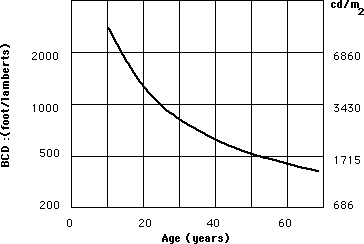
Figure O-4-a: Ability to tolerate glare decreases sharply
as a function of age as shown above. Data are based on a 1°
glare source size and a background luminance of 1.6 fl. (Source:
Bennett, 1977a, fig. 1.)
[Insert Chart Here]
D
Figure O-4-b: By avoiding
lines of confusion in the chromatic chart above one can circumvent
problems with the major types of color blindness. For maximum
visibility there should also be a high contrast between the figure
(text) and background.
O-5. Maximize the number of people who will... not miss important
information if they can't see.
Problem:
Visual output (e.g., information presented on screens, paper printouts,
cuing and warning lights, and dials) may not be seen at all by
some users.
Examples:
- Individuals who are severely visually impaired or blind may
not be able to see visual output, even when magnified and clarified
(as recommended in O4).
- Individuals who cannot read may be unable to use visually
presented text.
- Individuals who are deaf and blind may only be able
to perceive tactile output.
- Individuals who do not have any visual impairment may miss
warnings, cues, or other information if it is presented only in
visual form while their attention is diverted.
Design Options and Ideas to Consider:
- Providing all important visual information (redundantly) in
audio and/or tactile form.
- Accompanying visual cues and warnings by a sound, one component
of which is of a mid-low frequency (500-3000 Hz). (See O-
1.)
- Making information which is visually displayed (both text
and graphics) also available electronically at an external connection
point (standard or special port) to facilitate the use of special
assistive devices (e.g., voice synthesizers, braille printers).
Preferably the information would be available in an industry or
company standard format.
Additional Information:
- It is understood that those products designed solely for the
purpose of providing visual output (e.g., slide projectors, cameras)
will not generally be useful to severely visually-impaired/blind
people without special external adaptations. Therefore, it is
not intended that this guideline should necessarily be applied
to such products. It is, however, very useful for people who are
blind to be able to use a copy machine or word processor.
- Note that audio signals which are redundant with visual cues
can also benefit the general user, especially for products which
may be in use some distance from the user (e.g., in the next room)
or where the user's attention may be diverted.
- Some (but not all) people with learning disabilities could
benefit from simultaneously seeing and hearing information.
- All visually displayed information could be provided via voice
synthesizer. The cost for voice output is dropping rapidly. A
small button could be used to turn the voice on or off. (This
can be useful to people who are blind, have low vision, or have
difficulty reading the display. It could also provide cuing or
instructions which would be more than could conveniently be displayed
on a control panel or small display.)
- The external connector could be a standard parallel, serial,
or other I/O port. The data rate of the port should be appropriate
for the amount of data that needs to be transmitted. Products
with small amounts of displayed information could use a low bandwidth
port.
- Serial RS-232 provides a very common, low cost, standard connection
format. Serial data can also be sent via infra-red link. (see
next)
- An inexpensive and unobtrusive approach would be to provide
a small infra-red LED which would transmit the displayed information
via a pulse train of infra-red light. Information could be sent
in ASCII which could be picked up by a device which would translate
the information into voice or braille. This approach allow individuals
to receive information from the product without the user having
to actually connect a special aid to the product. (which is physically
difficult for individuals with physical limitations and requires
people with blindness to locate the proper connection point on
the product). This approach can be very inexpensive to implement
but would require that the user have and carry a receiving device.
This would be reasonable if the technique were used in a widespread
manner. Direct accessibility of the products without an external
device would, however, be superior. (See also I-7
for
infra-red coupling in opposite direction)
- Text information could be provided in ASCII. Graphics information
could be provided via a word description, a character listing
(for character-based screen displays), or a bit image. (See D1.)
- When providing information via text to an auxiliary port there
are at least two different strategies that could be used. One
would be to provide the exact information that is on the display
screen and let the user maneuver about on it (the screen text
image) using their access device. The second approach would be
to send out different (from that displayed on the screen) but
equivalent ASCII text that would provide the same information
as presented on the screen but in a format which was more conducive
to audio presentation. This would allow the use of fuller English
sentences and the presentation of information in a way that would
be more conducive to auditory memory. It would also allow for
the use of a very simple device that would convert IR to text
to speech (or Braille).
- Visual cues and warnings might be accompanied by a distinct
vibration for deaf users who may not be looking at the display
and would miss the cuing beep as well as for deaf-blind users.
See S-1.
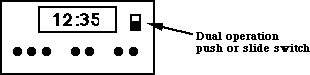 D
D
Figure O-5-a: As the cost
for voice synthesis continues to drop, a "Read Display"
button could be included in appliances that have visual displays
to allow them to be more easily and accurately read by people
with visual impairments (low vision or blindness). For displays
that are set (timers, etc.) the button should be pushable (for
a quick read) or lockable (so that it would read out continually
as it was adjusted).
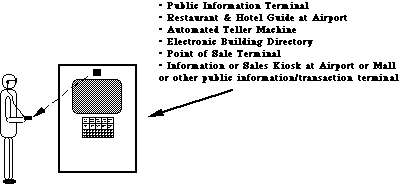 D
D
Figure O-5-b: If
direct accessibility cannot be built in for some reason, an external
connector would allow individuals with special interface devices
to connect them. A relatively low cost and vandal resistant connector
could be provided via an infra-red bidirectional link. Individuals
who are blind or unable to read the displayed information could
then use an assistive device and have information presented in
auditory or tactile (braille) form.
O-6. Maximize the number of people who can ... understand
the output (visual, auditory, other).
Problem:
Visual and/or auditory output may be confusing or hard to understand.
Examples:
- Some people with specific learning disabilities or with reduced
or impaired cognitive abilities:
- are easily confused by complex screen layouts (e.g., multiple
"windows" of information).
- have difficulty understanding complex or sophisticated verbal
(printed or spoken) output.
- have a short attention span, and are easily distracted when
reviewing a screen display.
- For many individuals who are deaf, as well as many other U.S.
citizens, English is a second language and not well understood.
Design Options and Ideas to Consider:
- Using simple screen layouts, or providing the user with the
option to look at one thing at a time.
- Shortening menus.
- Hiding (or layering) seldom used commands or information.
- Keeping language as simple as possible.
- Accompanying words with pictures or icons. (Note, however,
that the use of graphics may present more difficulty for people
who are blind. See O-5.)
- Using Arabic rather than Roman numerals (e.g., use 1, 2, 3
instead of I, II, III).
- Using attention-attracting (e.g. underlining, boldfacing)
and grouping techniques (e.g., putting a box around things
or color blocking).
- Highlighting key information.
- Putting most important information at the beginning of written
text (but not spoken).
- Providing an attention-getting sound or words before audio
presentation.
- Keeping auditory presentations short.
- Having auto-repeat or a means to repeat auditory messages.
- Presenting information in as many (redundant) forms as
possible/practical
(i.e., visual, audio and tactile) or providing as many display
options as possible.
- Providing digital readouts for product generated numbers where
the numeric or precise value is important. Providing dials or
bar graphs where qualitative information is more important (e.g.
half full, full etc). (See I-4 and I-6 for Input/Controls.)
Additional Information:
- To simplify language, try to have each sentence contain only
one clause. Look for an easier way to phrase sentences with more
than one verb. Favor active and affirmative statements over passive
or negative statements (e.g., "The red button controls the
volume" is more direct than "The volume is controlled
by the red button"). Avoid abbreviations (e.g., use stop,
exit, or escape rather than esc).
- Another easy way of simplifying screen layout is to break
up large amounts of text by using double spacing, lots of blank
space, or breaking text into smaller units (paragraphs). If feasible,
allow each section to be called up individually, letting the user
control the reading rate.
[illustration will go here when ready]
D
Figure O-6-a: Displays that use shorter sentences with careful
use of white space, grouping of items, and a logical layout are
easier to understand or interpret than displays that have too
much text that is laid out in one font and block format.
O-7. Maximize the number of people who can ... view the output
display without triggering a seizure.
Problem:
Individuals with seizure sensitivities (e.g., epilepsy) may be
affected by screen cursor or display update frequencies, increasing
the chance of a seizure while working on or near a display screen.
Design Options and Ideas to Consider:
- Avoiding screen refresh or update flicker or flashing frequencies
which are most likely to trigger seizure activity (see chart below).
Additional Information:
- Somewhere between 1 in 25,000 and 1 in 10,000 are affected
by photosensitive epilepsy (i.e., 25,000 - 100,000 people).
- The flash rates most likely to induce convulsions have been
found to be between 10 and 25 hertz, with a peak around 15-20
hertz. (See chart below for example of the relative sensitivity
of individuals to different frequencies.)
- Sensitivity to flicker increases with the intensity of the
light and the portion of the person's visual field which is affected
(e.g., a flickering or flashing screen is much worse than a small
line cursor). Focusing attention on a flashing object would also
increase its effect.
- To avoid screen flicker use 80-100 Hz refresh rate with
decay time approx. 10 ms to 10% luminance level.
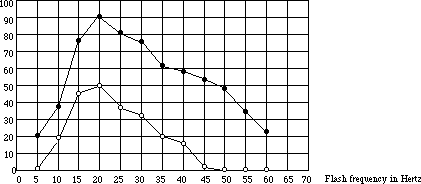 D
D
Figure O-7-a: Percent
of photosensitive patients in whom a photoconvulsive response
was elicited by a 2 second train of flashes with eyes open and
closed. As can be seen, the greatest sensitivity is at 20 Hz with
a steep drop off at higher and lower frequencies. (Jeavons, P.M.,
and Harding, G.F.A. 1975)
GO to NEXT SECTION -
GO to DESIGNING
UNIVERSAL/ACCESSIBLE CONSUMER PRODUCTS